User Interface
Insight is organized around the development tasks you perform while validating a vision application: inspect files, prepare media, start sources, view output, and watch runtime health.
Workspace
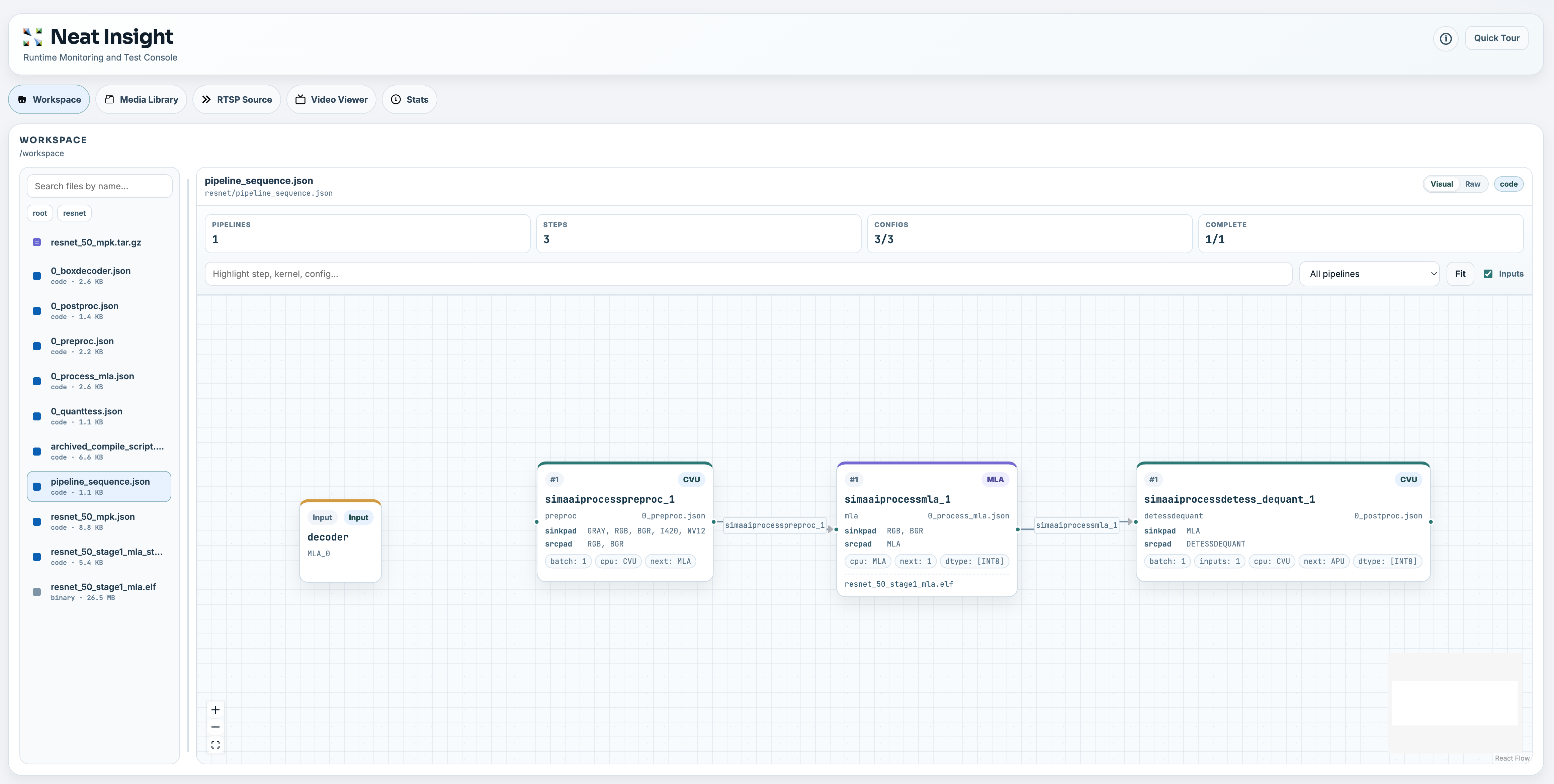
The Workspace view lets you browse the project files visible to Insight. In the Neat Development Environment, this is normally /workspace; outside the SDK, Insight falls back to the current working directory.
Use Workspace to:
- Search and browse source files, configuration, model artifacts, and generated outputs.
- Preview text, code, Markdown, images, and selected binary artifacts.
- Inspect MPK package archives without manually extracting them.
- View specialized development artifacts such as MLA stats, MPK manifests, and pipeline sequence files.
Workspace is especially useful when an application produces several build outputs and logs. It gives you a browser-accessible way to inspect those artifacts while staying in the same development session.
Media Sources
Media Sources is where you add and manage media files used for application tests. Select Import Media to open the import dialog, then choose one of three sources:
- Local files: Choose or drag and drop one or more files from your computer. H.264 MP4 uploads are normalized for low-latency playback with B-frames disabled while preserving the source frame rate.
- Catalog: Import from SiMa's curated video catalog for repeatable tests with known assets. Browse by asset type or name, search the catalog, filter by resolution, frame rate, and codec, preview a video, then import one variant or select and import several matching assets.
- YouTube: Paste a regular YouTube video URL, validate it to display a preview, and choose a start time, clip length, and output profile. Insight supports 1-, 3-, or 5-minute clips at
1080p30,720p30, or480p30. The imported clip is converted to WebRTC-friendly H.264 with B-frames disabled. Active live streams are not supported; use a regular video or an archived live stream.
Catalog and YouTube imports require network access. Insight displays progress while it downloads and prepares the media, then saves the result in the local media library.
Supported video formats include common container formats such as mp4, mov, avi, mkv, and webm. Insight also recognizes MJPEG assets and HEVC/H.265 media for codec-aware streaming. MJPEG and HEVC media are preserved so they can be streamed with their original codec behavior.
After importing media, you can filter the file list, preview a selected file, inspect its basic metadata, or delete files that are no longer needed. Use Media Sources before configuring streaming sources so you know which files are available, which codec Insight detected, and whether they are readable.
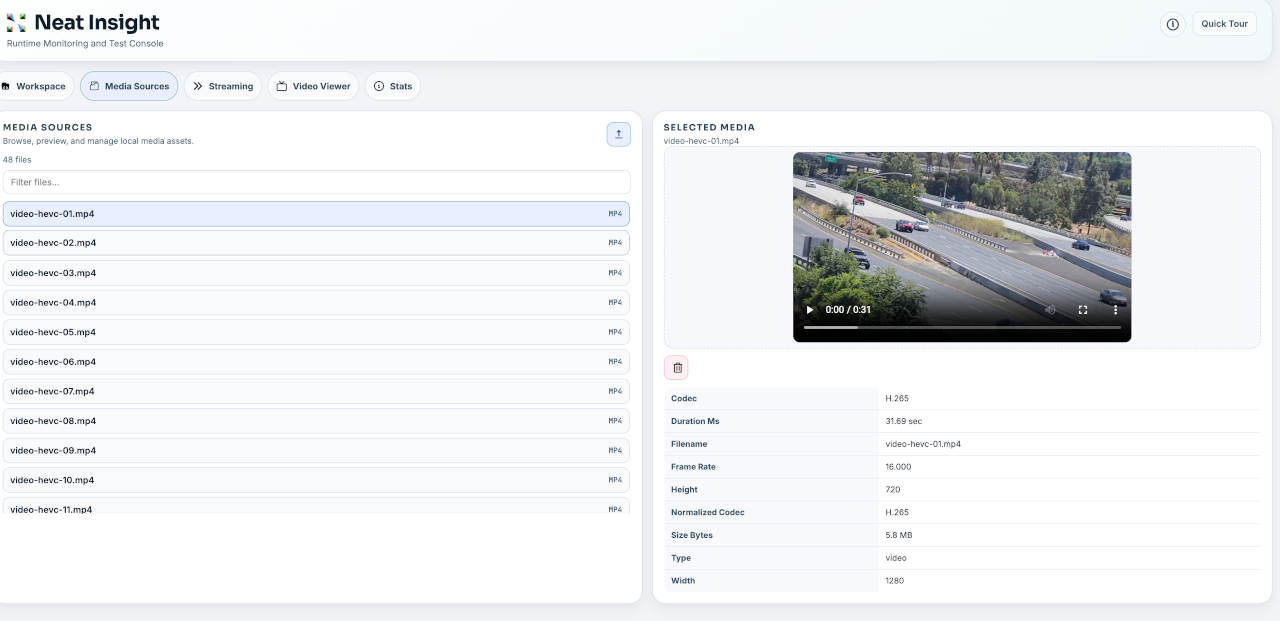
Media Sources combines importing, file selection, preview, metadata inspection, and delete actions in one view. Imported catalog assets are stored under catalog/, and YouTube clips are stored under youtube/, so you can identify how files entered the library.
Streaming Sources
The Streaming Sources view turns uploaded media files into live source slots. Each source slot can expose an RTSP URL:
rtsp://127.0.0.1:8554/src1
rtsp://127.0.0.1:8554/src2
rtsp://127.0.0.1:8554/src3
Those URLs are correct for applications running in the same SDK container as Insight. If the application runs on a DevKit or another external machine, use the SDK host IP address and the mapped rtsp.tcp host port from neat --json.
Insight selects codec and transport options from the assigned media:
- H.264 media streams over RTSP as H.264.
- HEVC/H.265 media streams over RTSP as H.265.
- MJPEG media can stream over RTSP as MJPEG or over HTTP as multipart MJPEG.
The codec is determined by the selected media and is not manually changed in the UI. MJPEG over RTSP is encoded into RTP-compatible MJPEG, while HTTP MJPEG can preserve MJPEG frames for camera-style HTTP testing.
You can assign media to a source, start and stop individual sources, auto-assign unique files across source slots, bulk start sources, stop all streams, and copy stream URLs for use by applications or test harnesses.
This view is useful when you need repeatable input streams for an object detection, segmentation, tracking, classification, or GenAI vision application.
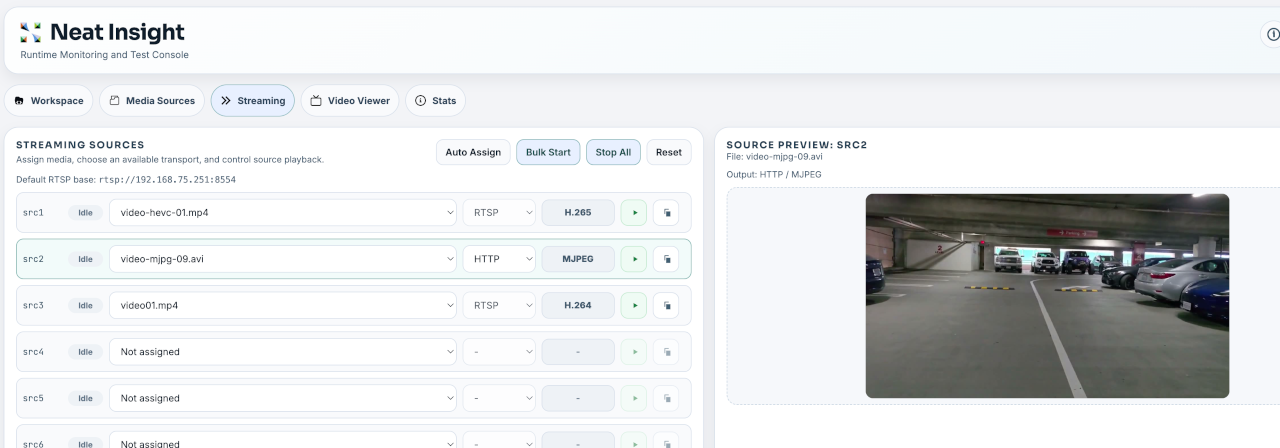
The Streaming Sources view lets you assign media files to source slots, start or stop streams, copy the active stream URL, and preview the selected source before wiring it into an application.
Use a webcam as a source
A webcam attached to the computer running your browser can be used as a live source, so you can test an application against a real camera without copying a file onto the board first.
-
Go to Media Sources and, under Local cameras, select Enable camera access. The browser asks for camera permission; Insight cannot grant it for you.
-
After you allow access, your cameras appear in each source dropdown under a Cameras group, above your video files:
Not assignedCamerasIntegrated CameraUSB CameraVideo filescatalog/parking_garage_cars/parking_garage_cars_1080p.mp4 -
Select a camera for a source slot, then select Start. The row shows a
[CAM]badge (video files show[VID]), the browser publishes the camera to Insight, and the slot reportsLive. -
Use Copy URL to get the RTSP URL and point your application at it, exactly as you would for a file source.
The camera list updates as cameras are connected and disconnected. Webcam sources publish video only, as H.264.
The preview beside the source list shows your local camera feed while capture is active. It is not the video the board received, and it does not show the delay that a receiving application sees; if publishing fails, capture stops and the preview clears.
Selecting Stop, unplugging the camera, or closing the browser tab ends the stream and returns the slot to Idle. Stop All, Reset and Auto Assign also release every webcam, because each of them takes those slots away: Reset and Auto Assign clear the camera selection as well, so pick the camera again afterwards. The browser tab must stay open while the webcam is publishing: it is the component sending video to Insight. For the same reason, a webcam source is never restored as Live after Insight restarts — reselect the camera and start it again.
If starting a webcam fails, the message names the cause:
| What you see | What to do |
|---|---|
| Camera permission was denied | Allow camera access for the Insight site in your browser settings, then re-enable camera access under Media Sources → Local cameras. |
| That camera is no longer available | The camera was disconnected. Select Refresh cameras and reselect it. |
| The camera could not be started | Another application is using the camera. Close it and retry. |
| Could not reach the webcam publish endpoint | The browser could not reach the publish listener. Trust the webrtcWhip endpoint's certificate (open its URL once to accept it) and confirm the port is reachable (see Ports and Network Behavior). |
| Webcam publish was rejected | Insight could not accept the stream. Confirm the webrtcWhip port is reachable (see Ports and Network Behavior) and that your browser trusts the Insight certificate. |
Browsers only allow camera access on pages they consider secure. If Enable camera access does nothing, open Insight over HTTPS and trust its certificate first; see Install and Upgrade.
Video Viewer
The Video Viewer displays low-latency WebRTC streams from the video forwarder.
For channel N:
video:    UDP 9000 + N
metadata: UDP 9100 + N
For example, channel 0 uses video UDP 9000 and metadata UDP 9100; channel 1 uses video UDP 9001 and metadata UDP 9101.
If the sender runs on a DevKit or another external machine, use the mapped videoUDP and metadataUDP host port ranges from neat --json. The channel math is the same, but the starting ports may be different.
The viewer can render metadata overlays for common vision outputs, including object detection, classification, pose estimation, segmentation, and tracking. Viewer settings let you tune overlay behavior such as confidence thresholds, ROI display, tracking history, and synchronization buffering. Metadata timestamps use source PTS milliseconds and are omitted when unavailable.
Use the Video Viewer to confirm:
- The application is sending video to the expected channel.
- Metadata is arriving on the matching metadata channel.
- Overlays align with the video frame.
- Browser playback is healthy.
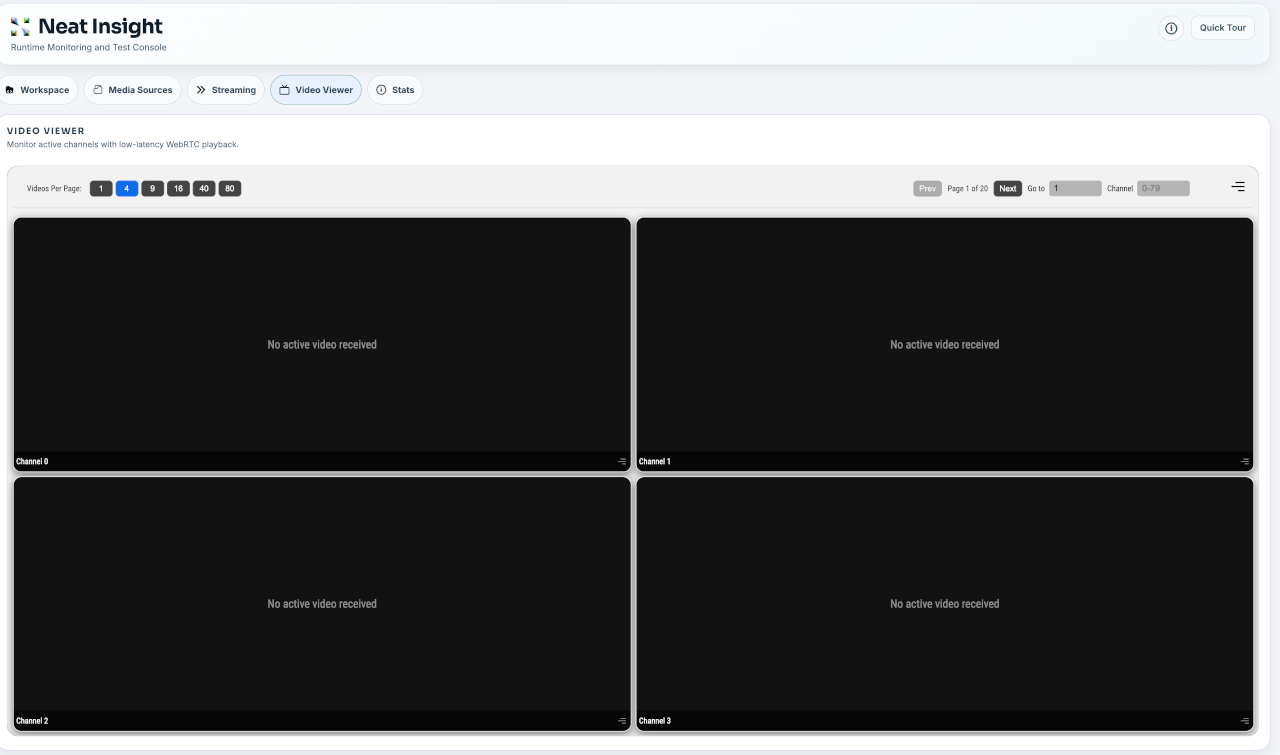
The Video Viewer can show one or more channels at a time, with pagination and channel selection controls for larger multi-stream tests.
Stats
The Stats view is a placeholder in the current release. It marks the planned location for system load and runtime metrics while an application is running, including CPU, memory, disk, temperature when available, MLA memory, and profiling timeline data streamed through Insight.
This feature is intended to be completed in the next release. Once complete, use Stats when you need to separate application behavior from system behavior. For example, a dropped frame problem may come from the application stream path, but it may also correlate with CPU load, memory pressure, or device runtime state.
System Information
The system information panel summarizes the environment Insight can see. In the Neat Development Environment, it can show SDK and component information, Insight status, update information, and exposed port mappings such as mainUI and videoUI.
This is the first place to check when a URL does not match the default port. Insight reads the available port map and uses the mapped videoUI port when opening the viewer. For command-line workflows, neat --json shows the same port-map information.